Free YouTube Download for PC and Mac2026
Get all the movies you like for offline watching!
Save all the items you want with the simple and smart downloader!
Get it for your PC or Mac or Android.
- Download YouTube at high speed without conversion.
- Convert video files to MP4, AVI or MOV.
- Get videos in Full HD, 4K, or even 8K resolution!
- Search for most liked YouTube Shorts, save them in bulk!
- Convert YouTube to MP3 and get 320kbps MP3 hi-fi files.
- Enjoy entire YouTube playlists and channels.
- Merge several files into one.
- Save videos with subtitles.
- Transfer downloaded files directly to iTunes.
- Available for PC and Mac. 100% clean and safe.
How to save videos using DVDVideoSoft YouTube Downloader
-
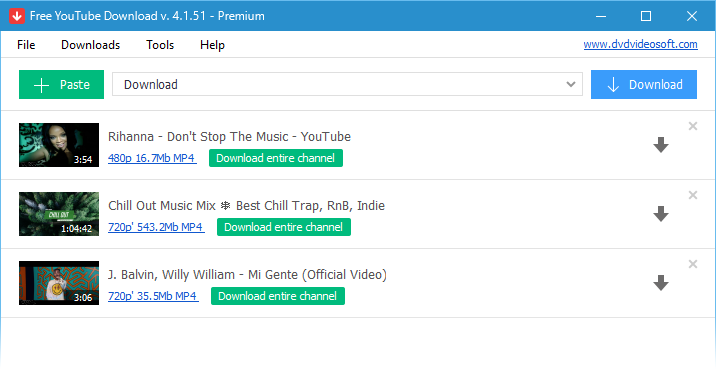
1. Run Free YouTube Download
-
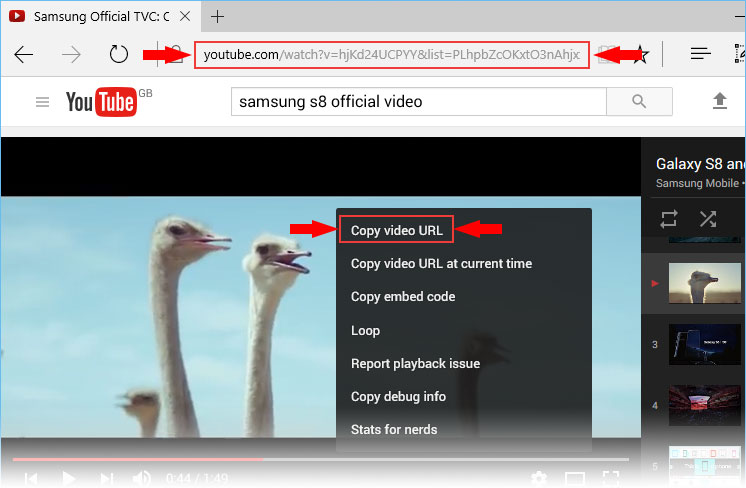
2. Get URL for the video you want to save
Copy YouTube link from the browser or right-click on the video itself and choose 'Copy video URL'.
-
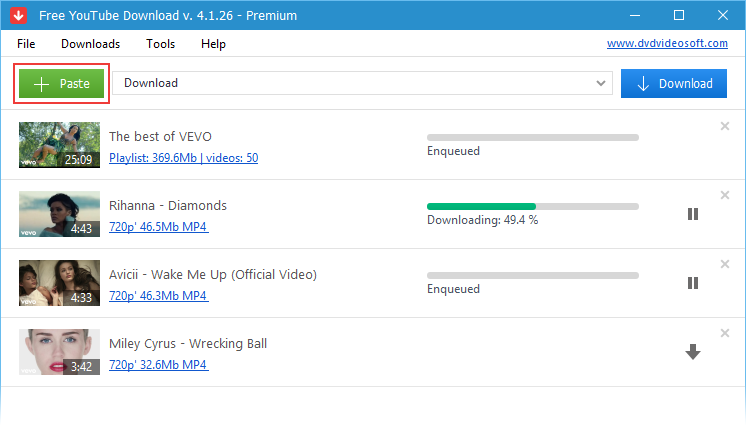
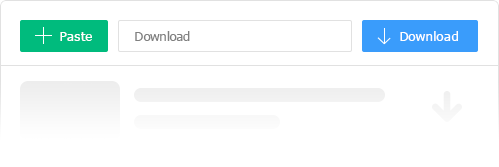
3. Click '+ Paste' button
The item will be added to your list.
Repeat this operation to add as many URLs as you need!
-
4. Press 'Download' button
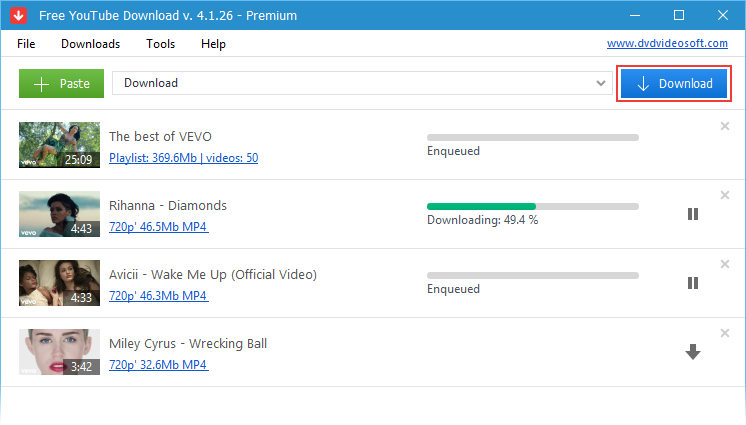
Done!
Enjoy this wonderful movie brought to you by the best YouTube downloader!
Benefits
- Keep your favorite videos forever, even if they disappear from YouTube.
- Save time and download entire playlists in original quality within seconds.
- Enjoy the best quality & get high-resolution VP9 videos automatically.
- Stay entertained offline and never miss your favorite clips and channels.
- Enjoy a clean, intuitive interface without distractions.
Why select a desktop YouTube Downloader over an online app: a comparative analysis
2 to 6 times higher speed
10 sec vs 1 min for a four-minute YouTube movie and 12 min vs 30 min for a heavy 8K short-film when downloading the same links with DVDVideoSoft and online video downloaders.
Pure user interface
DVDVideoSoft YouTube Downloader has a clear and user-friendly interface. There are no third-party pop-ups or redirects neither during the installation nor during its use. While online downloaders have plenty of them.
Variety of features
Online downloaders save single links and only a few of them support playlist downloading. The variety of features a desktop downloader offers is much bigger: from playlist and channel to video title and folder set up.
Full HD, 4K and 8K video support
Video download up to 720p is what any YouTube downloader supports. A higher resolution is usually out of the question. DVDVideoSoft video downloader detects all files YouTube offers, even if it’s 4K and 8K video stream.
VP9 video encoding support
The VP9 codec offers a much higher image quality than the AVC (aka Advanced Video Coding). Free YouTube Download automatically detects and saves this stream for high-resolution videos.
Instructions (step by step)
- Save and run the app
- Copy YouTube URL and click 'Paste' button
- Click the 'Download' button and enjoy!

Download videos in bulk!
Get videos super fast!
Free YouTube Download is known for its lightning fast multistream downloading.
It allows you to get several videos in original quality in just a few seconds.

Features
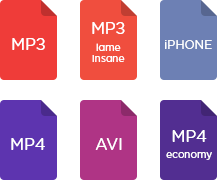
- get YouTube stream in any format, choose between MP4, MKV, WEBM, and MP3, enjoy original 4K quality
- perform conversion to MP4, AVI, and MP3
- apply output name format patterns
- open lists of links from any text files
- transfer videos to iTunes automatically and convert them to iPhone / iPad / iPod
- obtain subtitles
Frequently Asked Questions
1. How fast can I download YouTube videos with Free YouTube Download?
Super-fast downloads, get videos in seconds, no conversion needed.
2. Which formats can I save my videos in Free YouTube Download?
Convert videos to MP4, AVI, or MOV and choose what fits you
3. What resolutions are supported at Free YouTube Download?
Download videos in Full HD, 4K, or even 8K quality.
4. Can I download Shorts or playlists in bulk at Free YouTube Download
Yes, save popular Shorts, full playlists, or entire channels easily.
5. Is audio extraction available at Free YouTube Download?
Convert YouTube to 320 kbps Hi-Fi MP3 for music or audio-only needs.
6. Can I include subtitles and merge files at Free YouTube Download?
Absolutely, download videos with subtitles and merge multiple files into one.
7. Is Free YouTube Download compatible with iTunes and various platforms?
Transfer downloaded content directly into iTunes; supports PC and Mac.
8. Is Free YouTube Download safe and reliable?
Yes, it’s 100% clean, secure, and free of malware or bloatware.
| Full Specifications |  |
|---|
| What's new in version 4.5.14.712 |
| Version 4.5.14.712 may include unspecified updates, enhancements, or bug fixes. Performance improvement. |
| General | |
|---|---|
| Application name | Free YouTube Download |
| Description | A lightweight and easy-to-use application that supports audio and video streams downloading from Youtube and converts them to all popular formats |
| Release Date | June 20, 2026 |
| Date Added | June 20, 2026 |
| Version | 4.5.14.712 |
| Operating Systems | Windows (11, 10, 8, 7, XP SP3), macOS |
| Category | |
|---|---|
| Category | Internet Software |
| Subcategory | Download Managers |
| Download Information | |
|---|---|
| File Size | 136.25 MB |
| File Name | FreeYouTubeDownload_4.5.14.712_u.exe |