Free YouTube to MP3 Converter2026
- Convert YouTube to MP3 and get Insane and Extreme 320kbps MP3 hi-fi files!
- Also convert to AAC, OGG, M4A, FLAC and WAV lossless audio.
- Get original audio files without conversion.
- Enjoy entire YouTube playlists and channels.
- Convert any YouTube playlist to MP3.
- Download and convert audio files in bulk.
- No limits for batch downloads per day!
- Merge several audio files into one.
- Transfer music directly to iTunes.
- Available for Mac, PC and Android. 100% clean and safe.
How to convert any video to MP3 using Free YouTube to MP3 Converter
-
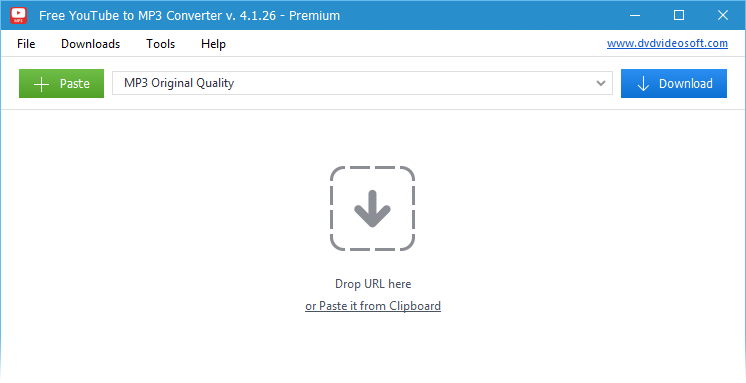
1. Run Free YouTube to MP3 Converter
-
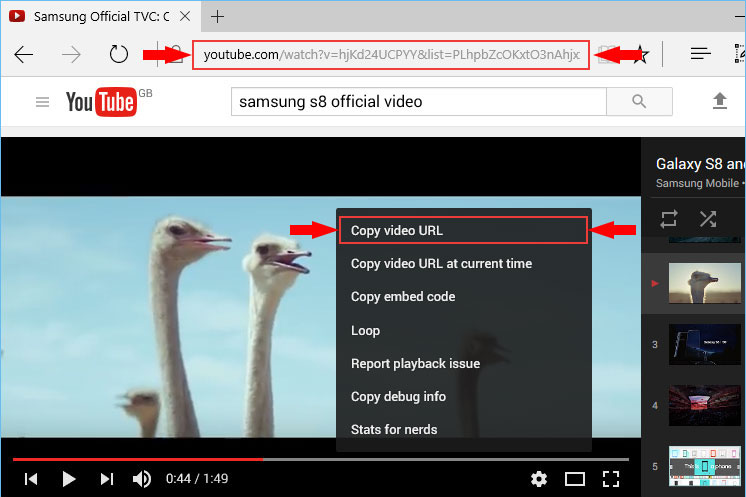
2. Copy video URL
Copy the link to the file or click right button of your mouse on the video itself and choose "Copy video URL".
-
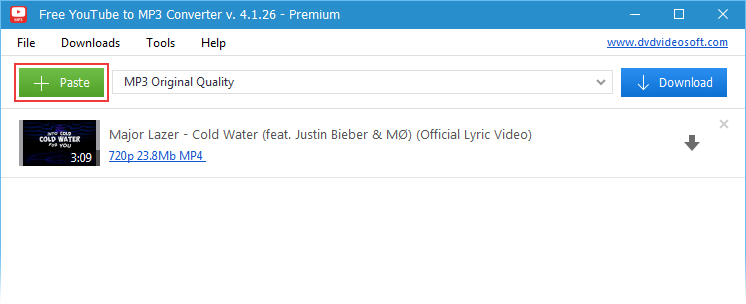
3. Paste the copied link to the application by clicking "Paste" button
You will see your video in the program's download list.
-
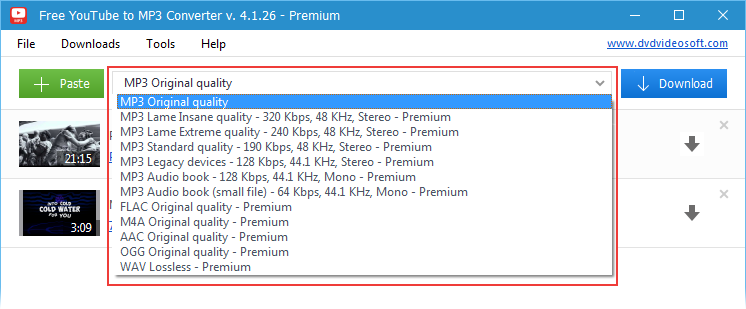
4. Choose the extension
You can save the video in MP3 (default extension), FLAC, M4A, AAC, WAC, OGG.
Program's distinctive feature is the opportunity to save in MP3 Lame Insane \ Extreme \ Standard Quality presets.
-
5. Click "Download" button
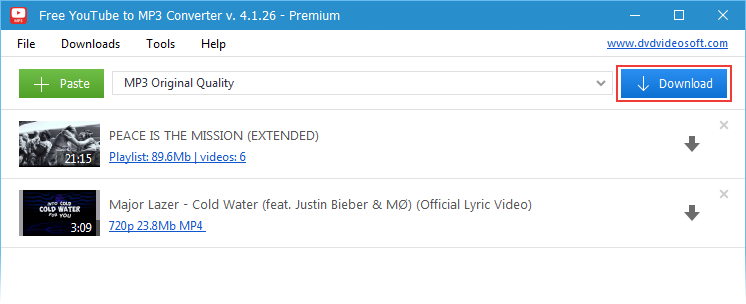
You made it!
Now you can enjoy your favorite tunes brought to you by the best MP3 converter!
Benefits
- Build your perfect audio collection of music, podcasts, audiobooks, or lectures.
- Experience pure sound with hi-fi 320 kbps and lossless formats like FLAC and WAV.
- Save hours of work thanks to batch downloading and multi-threading.
- Feel safe and confident with clean software, no hidden extras, no malware.
- Relax with ease of use - works on Windows and Mac with a simple, user-friendly design.
Today status
October 2026 updates
- 13.10.2026 YouTube signatures updated
- 10.10.2026 New version 4.5.23.1007 released
- 03.10.2026 YouTube signatures updated
Bulk download
Get the whole world of MP3s. Find playlists and channels to match your mood. Download and convert YouTube Playlist to MP3. This is the unique feature of the program. Try other top apps to download and convert from YouTube.
Pure sound
Convert to lossless and lossy. Formats available: MP3 (Lame Insane and Extreme Profiles), M4A (AAC), WAV, FLAC and OGG. Download the original stream to get hi-fi sound within the reach of the audiophile.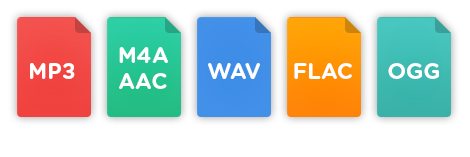
Functional
Enjoy multithreaded downloading. Download playlists and separate links — all at once. Customize output names easily. Fill MP3 tags and artworks automatically. All these features are available in our desktop app. Online tools usually lack them. Learn other differences between Desktop vs Online downloaders.
| Full Specifications |  |
|---|
| What's new in version 4.5.23.1007 |
| Version 4.5.23.1007 may include unspecified updates, enhancements, or bug fixes. Performance improvement. |
| General | |
|---|---|
| Application name | Free YouTube to MP3 Converter |
| Description | A lightweight and easy-to-use application that supports audio streams downloading from Youtube and converts them to all popular formats |
| Release Date | September 20, 2026 |
| Date Added | September 20, 2026 |
| Version | 4.5.23.1007 |
| Operating Systems | Windows (11, 10, 8, 7, XP SP3), macOS |
| Category | |
|---|---|
| Category | Internet Software |
| Subcategory | Download Managers |
| Download Information | |
|---|---|
| File Size | 144.93 MB |
| File Name | FreeYouTubeToMP3Converter_4.5.23.1007_u.exe |
Frequently Asked Questions
1. What audio formats are supported by Free YouTube to MP3 Converter?
Convert YouTube videos to MP3, AAC, M4A, OGG, FLAC, or WAV lossless.
2. Can I extract original audio without conversion at Free YouTube to MP3 Converter?
Yes, download the original audio stream without any format conversion.
3. Can I convert entire playlists or channels at Free YouTube to MP3 Converter?
Absolutely, download and convert full YouTube playlists and channels.
4. Are there batch or bulk download options in Free YouTube to MP3 Converter?
Yes, supports bulk downloading with no daily limits on batch conversions.
5. Can I merge audio files into one track with Free YouTube to MP3 Converter?
Sure, you can merge multiple audio files into a single file easily.
6. Can I transfer music directly to iTunes with Free YouTube to MP3 Converter?
Yes, enable automatic transfer of downloaded music to iTunes playlists.
7. Which platforms are supported at Free YouTube to MP3 Converter?
Available for Windows and Mac - fully clean and safe.
8. Is Free YouTube to MP3 Converter safe and reliable?
It is 100% clean, secure and available across multiple platforms.