Free Video to MP3 Converter for Windows
Fast and High-Quality Audio Extraction
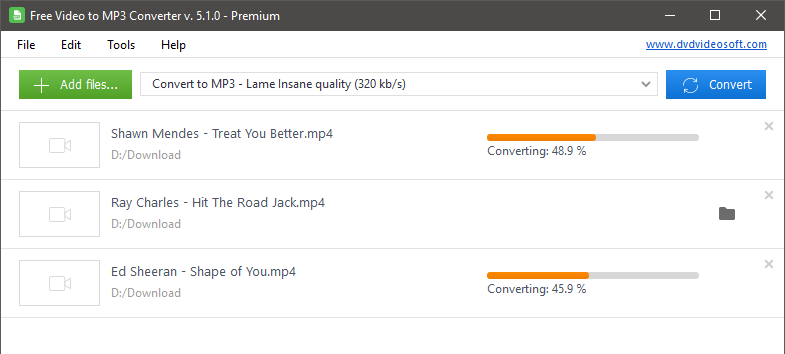
Extract audio from any video stored on your PC in a few clicks.
Convert video to MP3, WMA, or WAV Lossless effortlessly.
Also try YouTube to MP3 Converter | YouTube Downloader.
Convert video to audio on demand
- to repurpose videos into audiobooks, podcasts, or RSS feeds
- to create phone ringtones or extract unique sounds
- to save storage by keeping only the audio track
- to listen to lectures or interviews on the go

“DVDVideoSoft is known for its superb free media software that performs exactly as advertised, and Free Video to MP3 Converter is no exception. Its interface is clean and uncluttered, and it can convert batches of videos with ease.”
Techradar.com
The best free video converter 2020, Mark Wycislik-Wilson, Cat Ellis Март 4, 2020
Explore the features of Free Video to MP3 Converter
High-quality conversion
Extract audio from videos while preserving the original audio quality. Select the output file format that suits you best: save videos in the universally accepted MP3 format or the lossless WAV or WMA formats.
Broader support for different formats
The tool supports a variety of input formats: AVI, DivX, MPG, MPEG, MP4, M4V, WebM, WMV, MOV, QT, MTS, M2T, M2TS, DAT, 3GP2, 3GPP, 3GP, 3G2, DVR-MS, FLV, F4V, AMV, RM, RMVB, OGV, TS and more.
Batch processing
Turn multiple videos into an audio file at once. This is useful for converting entire video collections. Work faster with the video converter from DVDVideoSoft.
Merge several outputs into one
Open several video files in the program interface, tick the 'Merge into one file' box, and you will end up with a single audio file. This is an excellent way to create your own non-stop playlist or unique ringtone.
Safe, reliable and user-friendly
This ad-free, virus-free application is ideal for Windows users. The interface is available in over 20 languages. Everything is clear, even for beginners. If not, support is ready to help within 24 hours.MP4 to MP3 converter
Convert MP4 or any other video to lightweight MP3. Process videos from reels, iPhone videos, screen recordings and other media. MP3 files can be played on almost any device or player.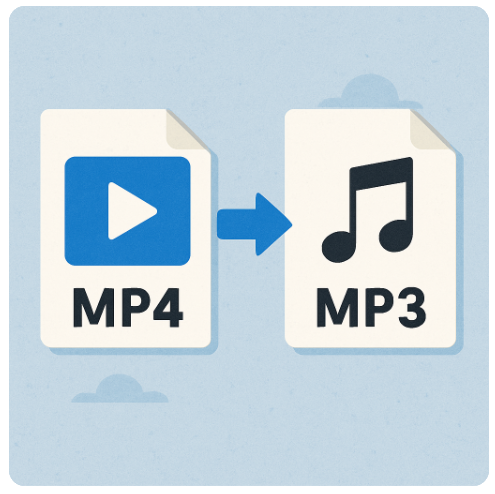
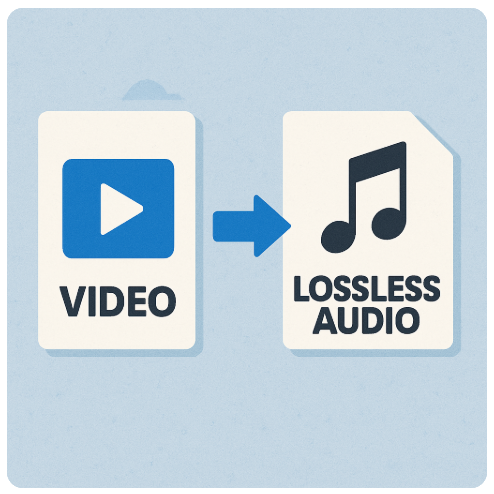
Video to WAV lossless converter
Convert MP4 to WAV. Extract lossless WAV from any video if the original audio source is lossless. This ensures minimal sound degradation and preserves high fidelity. Use WAV for music editing or sound projects.How to turn a video into an audio file:
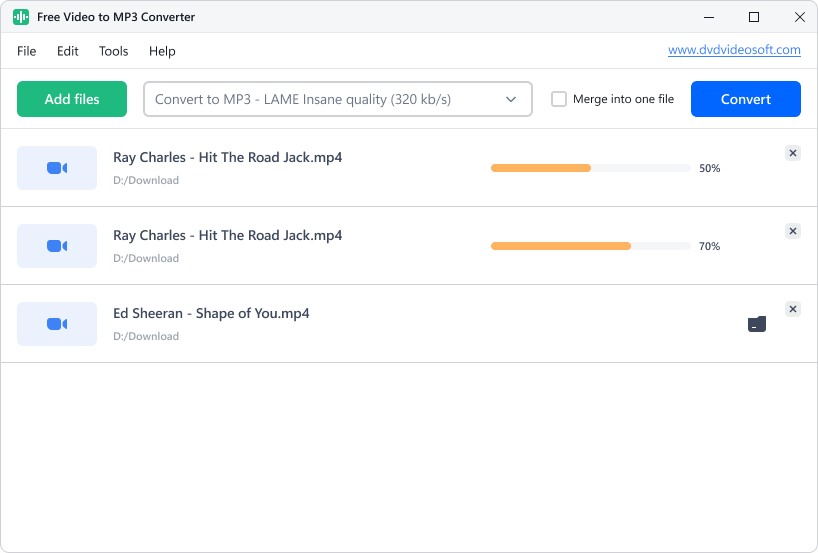
- Step 1. Download and install the Free Video to MP3 Converter onto your desktop.
- Step 2. Select the local videos you want to process by clicking the ‘Add files’ button.
- Step 3. Use the drop-down menus at the top to decide on the output format and quality bitrate.
- Step 4. Press 'Convert' and wait until the conversion is complete.
- That’s it! Download the Free Video to MP3 Converter and start converting your favorite videos!
The ultimate guide to converting video to audio:
Which audio format should I choose for conversion?
The MP3 format is compatible with almost any device. If you’re not sure which format to select from the menu, choose MP3. You can adjust the bitrate from 64 kbps for audiobooks to 320 kbps for higher-quality output.
WMA uses an encoder to reduce file size while maintaining high quality. Like MP3, it is lossy. However, it offers better sound quality at lower bitrates. WMA files can be played back on media players such as Windows Media Player, VLC, Winamp, Media Player Classic and various Android music apps.
WAV is an uncompressed lossless format. This makes WAV files large. Convert your video to WAV if you want to preserve the original sound quality without any loss and if you have enough storage space on your device. MP4 to WAV is a popular conversion. Extract to WAV as this format is ideal for editing, mastering, or archiving. To play back files, use Windows Media Player or VLC; on a Mac, choose iTunes or QuickTime; to edit WAV use Audacity.
Is there any loss of quality after conversion?
It's impossible to convert without losing quality at all. However, you can select a suitable audio format and bitrate to minimize this loss.
Can I trim the output audio as well?
Yes, use another DVDVideoSoft tool, Free Audio Editor. Make precise selections and delete unwanted parts from your file.
Can I convert audio files too?
Use Free Audio Converter to convert between audio formats. It supports all popular audio formats for input and can convert files to MP3, FLAC, WAV, WMA, AAC or M4A. Free Video to MP3 Converter only accepts video files.