Free MP4 Video Converter
Convert WEBM, AVI, FLV, MOV and other videos to MP4 & more
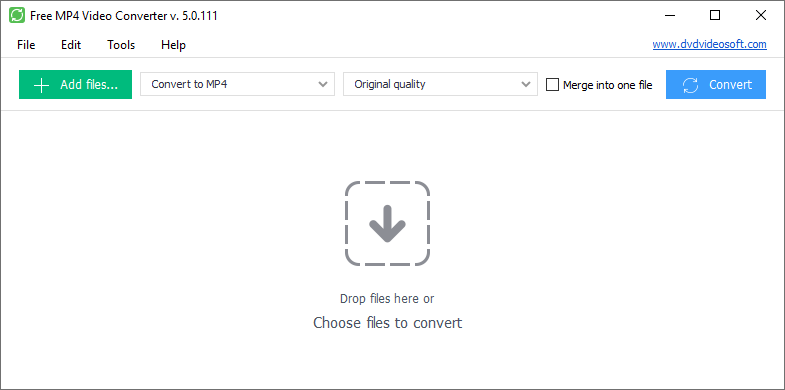
Free MP4 Video Converter is a simple yet functional tool to convert video files to MP4 format compatible with popular multimedia devices.
QQQAlso try our YouTube to MP4 and YouTube to MP3 Converters.
- You don't need to worry about degradation after converting your video to MP4 format.
- Preset Editor lets you edit the video and audio format.
- Choose among container type, video codec, frame rate, bitrate, width and height of the video.
- Edit audio format and bitrate of the sound to get high-quality MP4 video.
Why do you need the MP4 video converter by DVDVideoSoft?
This MP4 converter makes it easy to convert videos between different formats: WEBM to MP4, MKV to MP4, AVI to MP4, MOV to MP4, WMV to MP4, FLV to MP4 and much more.
You can transform videos to playback on your iPhone, iPad or other device using this cool video conversion software.
It has a unique feature that allows to combine multiple video files into one. Simply check the box for 'Merge into one file' on top and wait till the video is generated. It can be done with relative ease and in no time.
This mp4 converter proved to be faster than any online video converter on the web. It's an easy to use app with a user-friendly interface.
MP4 Converter supports a variety of input video formats: AVI; IVF; DIV; DIVX; MPG; MPEG; MPE; MP4; M4V WEBM; WMV; ASF; MOV; QT; MTS; M2T; M2TS; MOD; TOD; VRO; DAT; 3GP2; 3GPP; 3GP; 3G2; DVR-MS; FLV; *F4V; AMV; RM; RMM; RV; RMVB; OGV; MKV; TS.
How to convert any video to MP4 format
-
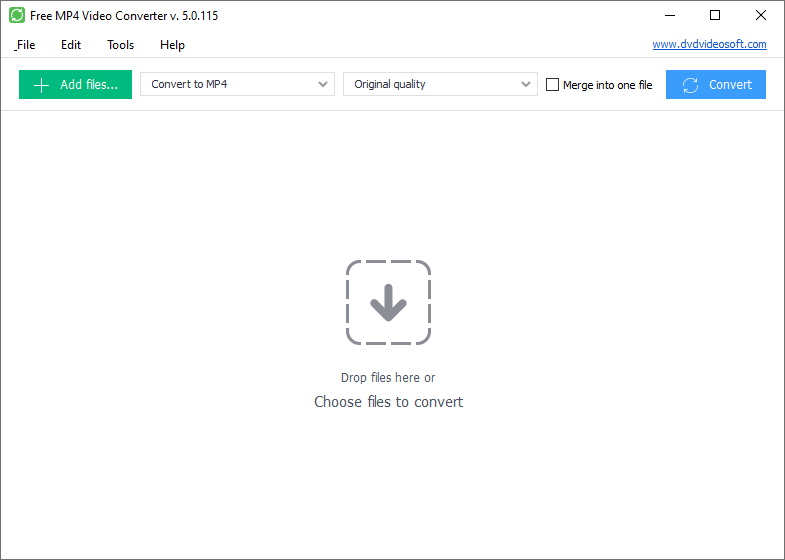
Step 1. Download Free MP4 Video Converter
-
Step 2. Select Input Video Files
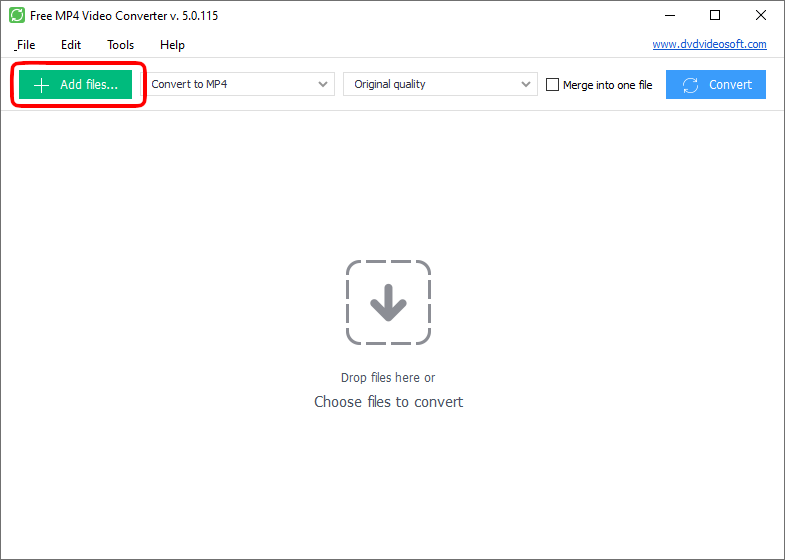
Click the Add files... button to select an input video file(s) from your computer.
Input file formats: *.avi; *.ivf; *.div; *.divx; *.mpg; *.mpeg; *.mpe; *.mp4; *.m4v; *.webm; *.wmv; *.asf; *.mov; *.qt; *.mts; *.m2t; *.m2ts; *.mod; *.tod; *.vro; *.dat; *.3gp2; *.3gpp; *.3gp; *.3g2; *.dvr-ms; *.flv; *.f4v; *.amv; *.rm; *.rmm; *.rv; *.rmvb; *.ogv; *.mkv; *.ts
-
Step 3. Choose Presets
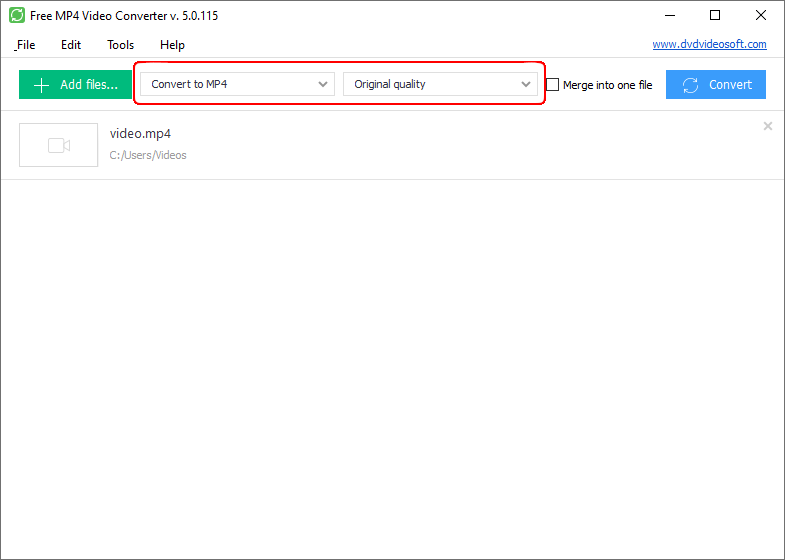
Select your device, screen resolution and other parameters from the larger submenu of the mp4 converter.
-
Step 4. Convert Videos
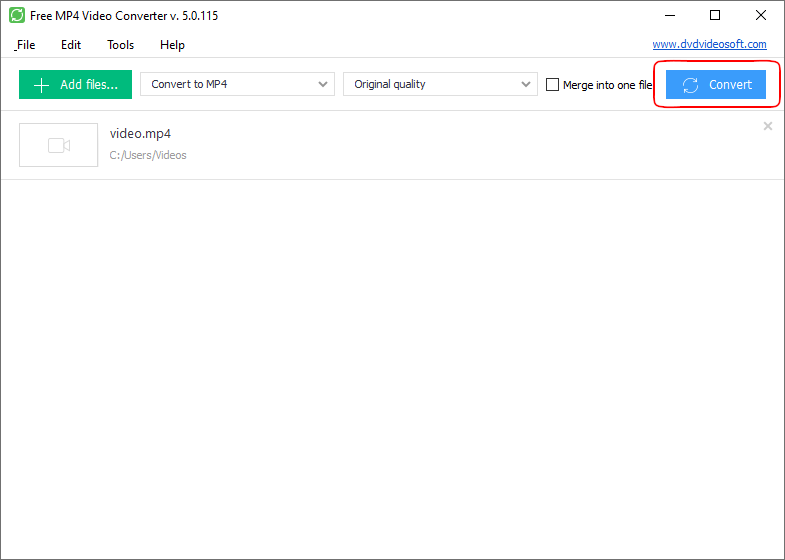
Click the Convert button and wait till the video is converted.
Note: Before clicking the Convert button you can set to turn off the computer after the process is completed. Just go to Tools - Options - Advanced and make sure the appropriate box is checked.
| Full Specifications |  |
|---|
| What's new in version 5.1.5.903 |
| Version 5.1.5.903 may include unspecified updates, enhancements, or bug fixes. Performance improvement. |
| General | |
|---|---|
| Application name | Free MP4 Video Converter |
| Description | Free MP4 Video Converter is a simple yet functional tool to convert video files to MP4 format compatible with popular multimedia devices. |
| Release Date | June 08, 2026 |
| Date Added | June 08, 2026 |
| Version | 5.1.5.903 |
| Operating Systems | Windows 11, 10, 8, 7 |
| Category | |
|---|---|
| Category | Video Software |
| Subcategory | Video Converting Software |
| Download Information | |
|---|---|
| File Size | 40.26 MB |
| File Name | FreeMP4VideoConverter_5.1.5.903_d.exe |