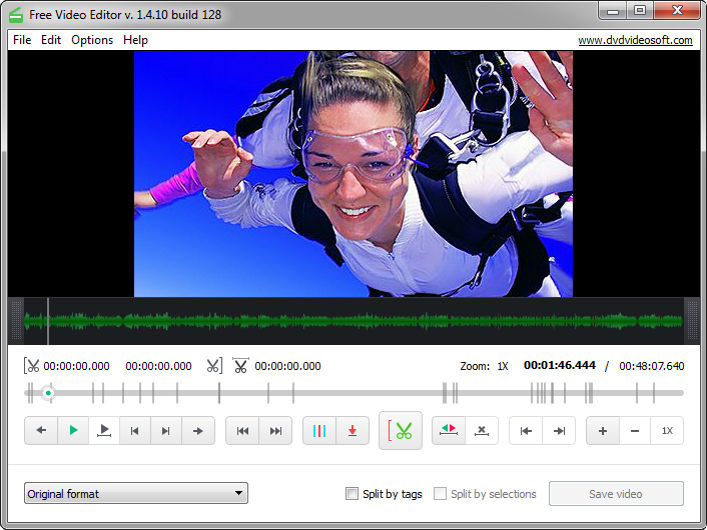
Just a superb app to edit video files. Plain and simple, yet complete!
The best Free Video Editor of the year 2020 that saves your time.
You can edit video files downloaded from YouTube with our YouTube Downloader. If you need to get captions or subtitles for your video, try our Subtitle Downloader for YouTube. And to download complete playlists, use YouTube Playlist Downloader.
If you’re a fan of Apple devices, also learn how to download YouTube to MP4 iPhone video compatible format.
- Edit nearly 100% of video files found nowadays
- Simple and self-explaining interface
- Easy-to-use and powerful application for Windows
What is a video editor?
Free Video Editor is a free video editing software which lets you trim and cut unwanted parts from video files without re-encoding.
That means that the program preserves original quality of the input video files and cut their parts easily and fast.
All you have to do is to set a start and an end point for the unwanted part, cut it and press the button Save video. The edited video is saved as a new file.
This lossless video editing program supports a variety of input video formats: .avi, .mpg, .mp4, .mkv, .flv, .3gp, .webm, .wmv.
How to edit videos using Free Video Editor
-
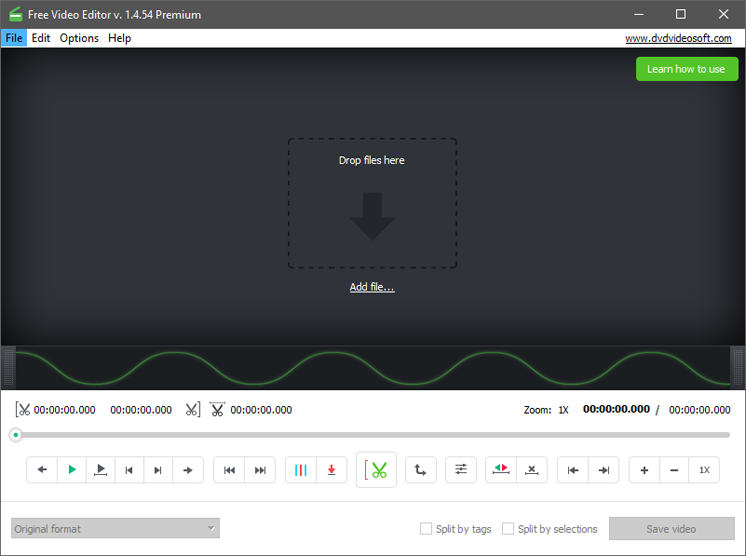
1. Run Free Video Editor
-
2. Import video
Click 'Add file…' to browse for a video file or just drag and drop your video file in the program's window.
-
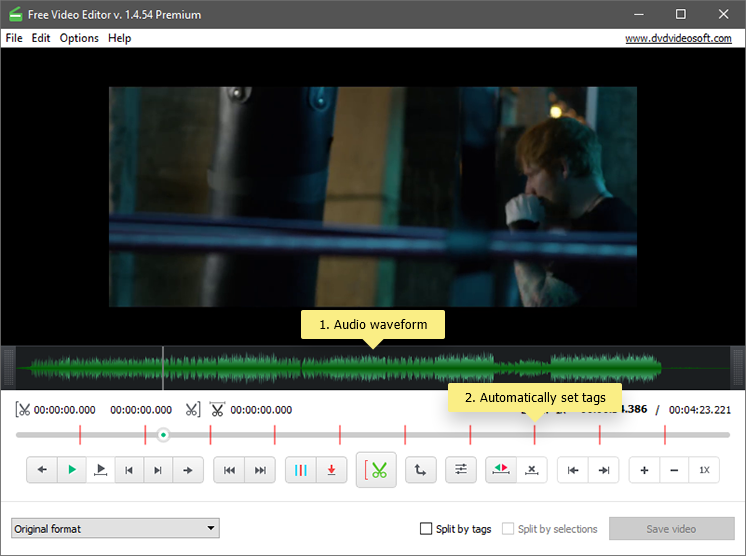
The app will generate an audio waveform and show you the intensity of the sound.
-
The timeline will display automatically set tags for the first frames of every scene of the video and the playback indicator to navigate along the video.
Note: Depending on the video duration and PC performance, the video indexing may take a couple of minutes.
-
-
3. Edit video
There are two ways to do it:
-
by Selections
-
by Tags
To edit video using selections do the following:
-
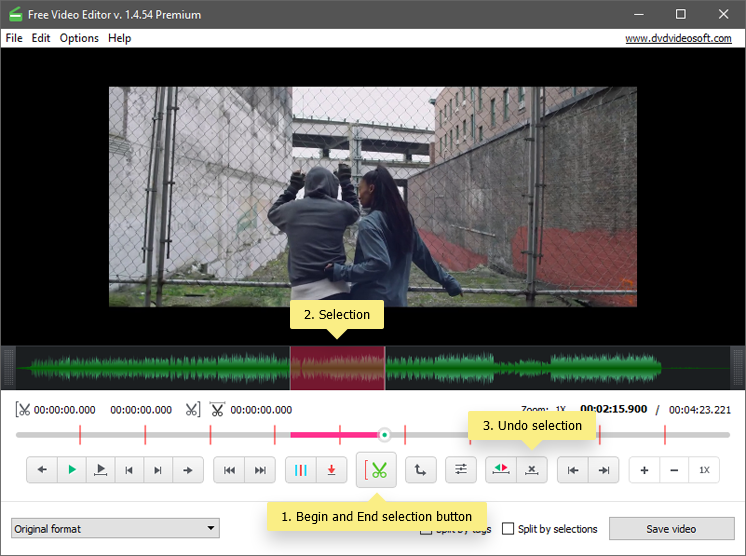
Define the starting point of the selection by clicking the 'Begin selection' button and define the end point by dragging the indicator to the desired position and clicking the same button.
-
Choose as many selections as you want to delete.
-
If you need to undo selections: use the 'Undo selection' button to clear the selection.
Note: to undo all selections, place the indicator in the unselected area. To delete one selection, place the indicator within this selection.
To edit video using tags do the following:
-
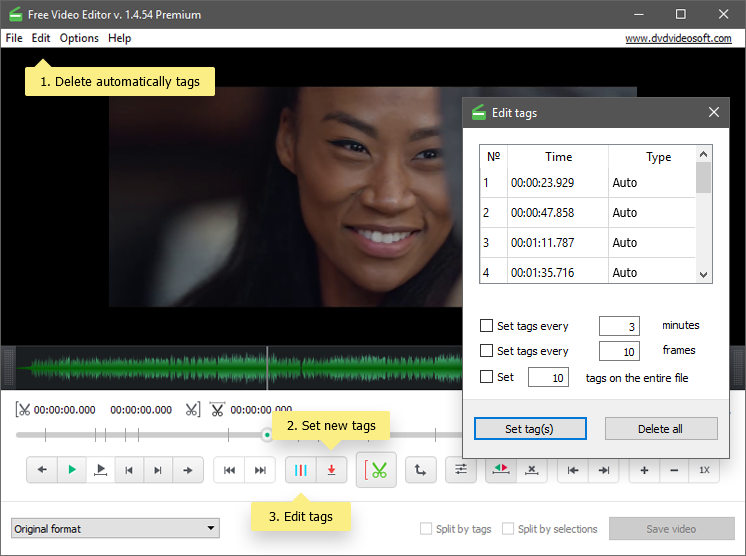
Delete automatically set tags by clicking 'Edit > Delete auto tags' in the Menu (or right-click and choose 'Delete all auto tags').
-
Set additional tags: drag the playback indicator to the point where you want to set a new tag and click the 'Set tag' button.
-
Edit tags: Open 'Edit tags' menu and specify intervals for tags (e.g. 10 min, 3 min or 30 sec), or set a specific number of tags for the video file, (e.g. 1, 5, etc.), or use the 'Delete all' button (you can also select the tags you want to delete by highlighting them and pressing Del on the keyboard).
-
-
4. Choose output options and save video
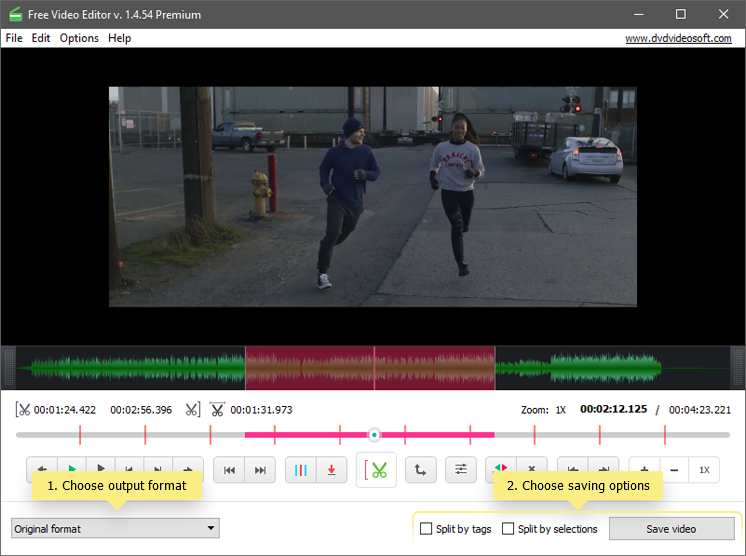
Select the output format from the drop-down menu: Original, AVI, MP4, MKV, MP3 (audio only) or GIF.
Note: if you choose 'original format', Free Video Editor processes the video file without re-encoding, which means that the process is extremely fast and the original quality is preserved.
Choose Saving option:
-
Save video (save the video as a single file deleting the selected parts)
-
Split by selections + Save video (delete all the selected scenes and save remaining parts as separate files)
-
Split by tags + Save video (split the video by tags and save the parts as separate files)
Here we go, enjoy one of the best and easy to use Video Editor!
-