
Free Studio 5
download one installation for 47 freeware!
Download, convert, upload, rip & burn
Follow us
News
New Free Studio 5.5.0 release!
May 10th, 2012

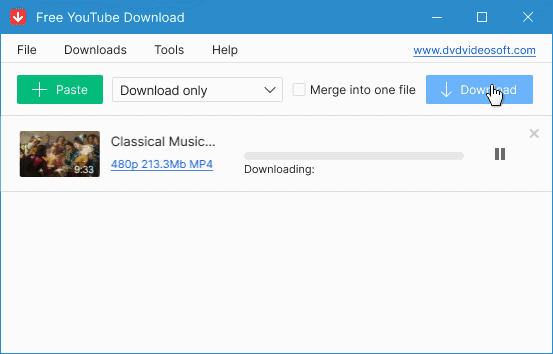
YouTube programs are able to download new types of music collections – YouTube Top 100, Billboard Hot 100, Daily 100.
Free DVD Video Burner has gone through global changes, so the problem when burned DVDs were not supported by some dvd players will not appear anymore. Numerous improvements concerned also the video editing tool - Free Video Dub.
Download Free Studio 5.5.0 and get all updates at once!

Get Updates with Free Studio 5.4.6!
April 12th, 2012

YouTube software downloads all possible artist's playlists and show lists which sometimes caused downloading problems. CUE files are supported for input in Free Audio Converter from now on. Video converters feature new quality preset for iPad 3.
Find more updates by downloading Free Studio 5.4.6!

Free Studio 5.3.5 Just Released!
February 22nd, 2012

Accelerated conversion with NVIDIA CUDA technology enabled in all converters and numerous other improvements:
- fixed problems in YouTube downloading programs;
- reworked Free Audio CD Burner and Free DVD Video Converter;
- multiple fixes in Free Video Flip and Rotate and Free Video Dub, etc.
Download Free Studio 5.3.5 now!

Free newsletter

Video flash player settings

When the video is converted you get xml file and the following HTML code:
            
<div id="videoPlayer">
    <script type="text/javascript" src="swfobject/swfobject.js"</script>
    <script type="text/javascript" src="swfobject/swfmacmousewheel.js"</script>
			        
    <script type="text/javascript">
        
        var flashvars = {
            htmlPage: document.location,
            currCateg: swfobject.getQueryParamValue("currCateg"),
            currVideo: swfobject.getQueryParamValue("currVideo"),
            settingsFile: "settings.xml"
        };

        var params = {
            allowFullScreen: "true",
            allowScriptAccess: "always"
        };

        var attributes = {
            id: "videoPlayer",
            name: "videoPlayer"
        };
        swfobject.embedSWF("videoPlayer.swf", "videoPlayer", "550", "400", "9.0.115", 
                    "swfobject/expressInstall.swf", flashvars, params, attributes);
        swfmacmousewheel.registerObject(attributes.id);
</script> </div>

There are three sections in xml file:

  • 1. Options
    • autoResize - if this option is set to true then the player will be displayed on the whole stage
    • width and height - use these options if you want not to use the whole stage (these options will be ignored if autoResize=true)
    • buttons space - set the distance between the buttons on the controls bar (pixels)
    • buttons display - set the order in which you want the buttons to appear in controls bar
    • button sound - if this option is set to true, a faint sound will be heard when clicking a button
    • showMiddlePlayBtn - if this option is set to true then Middle Play Button will be displayed when the video is stopped or paused
    • controls bar hide - if this option is set to true, the controls bar will auto-hide if during a given time in seconds there is no user activity
    • controls bar hideDelay - the time in seconds since the last user activity, after which the control bar autohides
    • videos buffer - the time in seconds needed to be pre-downloaded before the video starts to play
    • keepAspectRatio - if this option is set to false then the video will be shown on the entire player area
    • autoLoad - if this option is set to true than the player will start loading the video at startup
    • autoPlay - if this option is set to true then the player will start playing the video at startup (it will ignore autoLoad option)
    • jumpToNextCategory - if this option is set to true, and playContinuously is also set to true, the player will move to the first video in the next category after the last video in the current category is finished
    • loop - if this option is set to true then the player will replay the video
    • random - if this option is set to true then the player will randomly play a new video when the current one reached the end, and if autoPlay is set to true.
    • volume default - the default volume
    • volume format - the volume bar can be set to be either vertical or horizontal
    • watermark visible - if this option is set to true then a Watermark image will be displayed over the video
    • watermark position - the value can be TL, TR, BL, BR (T-top, B-bottom, R-Right, L-Left)
    • tooltip visible - if this option is set to true, auto-resizeable tooltips will appear to hint the user on each button's function
    • tooltip hideDelay - the time in seconds before the tooltip autohides, after the mouse pointer has moved away from the button
    • listeners spaceKey - if this option is set to true then when the space key is pressed the video will toggle play-pause events
    • listeners click - if this option is set to true then when the background area is clicked the video will toggle play-pause events
    • listeners doubleClick - if this option is set to true, double clicking inside the player area will switch in and out of full screen mode
    • cursor hide - if this option is set to true, the mouse pointer will auto-hide if during a given time in seconds there is no user activity
    • cursor hideDelay - the time in seconds since the last user activity, after which the mouse pointer autohides
    • playlist size - the playlist's height (for top/bottom alignment) or its width (for left/right alignment), measured in pixels
    • playlist thumbWidth - the width of the thumb images inside the playlist; measured in pixels
    • playlist thumbHeight - the height of the thumb images inside the playlist; measured in pixels
    • playlist thumbPadding - the distance between the playlist's thumbs, measured in pixels
    • description visible - if this option is set to true, the video's description will be shown at the bottom of the player
    • description size - the height, in pixels, of the description area

  • 2. Colors
    • playerBackground - the video's background color
    • preloader:
      • background - the background's color
      • bckAlpha - the background's alpha
      • text - the percentage's color
      • circle - the rotating circle's color
    • middlePlayBtn:
      • arrowNormal - the arrow's color for the normal state
      • bckNormal - the background's color for the normal state
      • alphaNormal - the alpha value for the normal state
      • arrowOver - the arrow's color for the over state
      • bckOver - the background's color for the over state
      • alphaOver - the alpha value for the over state
      • arrowDown - the arrow's color for the press state
      • bckDown - the background's color for the press state
      • alphaDown - the alpha value for the press state
    • controllerBackground - the Control bar's background color
    • controllerButtons:
      • normal - the buttons color for the normal state
      • over - the buttons color for the over state
      • down - the buttons color for the press state
    • volume:
      • border - the volume's bar border color
      • background - the volume's bar background color
      • speaker - the speaker's button color
      • bar - the volume's bar color
    • volumeScrubBtn:
      • brdNormal - the scrub volume button's border color for the normal state
      • bckNormal - the scrub volume button's background color for the normal state
      • brdOver - the scrub volume button's border color for the over state
      • bckOver - the scrub volume button's background color for the over state
      • brdDown - the scrub volume button's border color for the press state
      • bckDown - the scrub volume button's background color for the press state
    • progressBar:
      • border - the progress bar's border color
      • background - the progress bar's backgound color
      • elapse - the elapsed time bar's color
      • download - the downloaded time bar's color
    • progressScrubBtn:
      • brdNormal - the scrub video button's border color for the normal state
      • bckNormal - the scrub video button's background color for the normal state
      • brdOver - the scrub video button's border color for the over state
      • bckOver - the scrub video button's background color for the over state
      • brdDown - the scrub video button's border color for the press state
      • bckDown - the scrub video button's background color for the press state
    • times - the color for Elapsed Time and Total time (visible on Control bar)
    • share:
      • background - the overlay's color
      • bckAlpha - the overlay's alpha
      • boxBck - the texts and buttons box background color
      • boxBckAlpha - the texts and buttons box alpha
      • labels - the labels ("Link to this video", "Embed this video" and "Send to a friend") text's color
      • errorText - the error or confirmation text's color
      • text - the input text's color
      • textBck - the input text's background color
      • textBrd - the input text's border color
      • btnsNormal - the buttons color for the normal state
      • btnsOver - the buttons color for the over state
      • btnsDown - the buttons color for the press state
    • playlist:
      • background - the description's backround color
      • line - the color of the line separating the playlist from the area on the left
      • thumbBck - the thumbs background's color
      • thumbNormalAlpha - the transparency degree of the thumb when in normal state (0 completely transparent, 100 completely opaque)
      • thumbOverAlpha - the transparency degree of the thumb when the mouse pointer is over it (0 completely transparent, 100 completely opaque)
      • thumbSelectedAlpha - the transparency degree of the thumb when it is selected (0 completely transparent, 100 completely opaque)
      • title - the video title's color, displayed in the playlist
      • description - the description text's color, displayed in the playlist
    • category:
      • bckNormal - the category name's backround color, in normal state
      • titleNormal - the category name's text color, in normal state
      • bckOver - the category name's backround color, in mouse over state
      • titleOver - the category name's text color, in mouse over state
      • bckSelected - the category name's backround color, when the category is selected
      • titleSelected - the category name's text color, when the category is selected
    • description:
      • background - the description's backround color
      • line - the color of the line separating the description from the above area
      • title - the video title's color, displayed in the description area
      • description - the description text's color, displayed in the description area
    • scrollBar:
      • trackBar - the color of the scroll's trackbar
      • scrubBrdNormal - the color of the scroll button's border, when it is in normal state
      • scrubBckNormal - the color of the scroll button's background, when it is in normal state
      • scrubBrdOver - the color of the scroll button's border, when it is in over state
      • scrubBckOver - the color of the scroll button's backround, when it is in over state
      • scrubBrdDown - the color of the scroll button's border, when it is in pressed state
      • scrubBckDown - the color of the scroll button's backround, when it is in pressed state
    • caption:
      • size - the caption text's height
      • color - the color of the caption's text
      • glowColor - the color of the glow surrounding the characters in the caption
    • tooltip:
      • bckColor - the tooltip's background color
      • txtColor - the color of the tooltip's text
      • alpha - the opaqueness of the tooltip, set as percent.

  • 3. Video
    • videoPath - the video file's path goes here
    • previewImage - the preview image file's path goes here
    • watermarkPath - the watermark image file's path goes here
    • watermarkLink - the link that will be opened when watermark image is clicked
    • title - the video's title that will be displayed by the player
    • description - the video's description text
    • caption - the path to the file that contains your comments or subtitles

The player is powered by FlashXpert.

Here you can find information about parameters of other flash player types:

classic player
It has a standard set of buttons and functions. Click here to learn more.

maxi player
It has a full set of buttons and a lot of different functions. Click here to learn more.

multi player
It plays several video files, has a full set of buttons and a lot of different functions. Click here to learn more.

mini player
It has a minimal set of buttons and functions. Click here to learn more.